Receipt scanning turns a photo or PDF of a receipt into a draft expense entry: date, supplier, amount and tax read from the image, the image attached, and the entry sorted by person and month for approval. A person approves before anything reaches the books.
What receipt scanning does
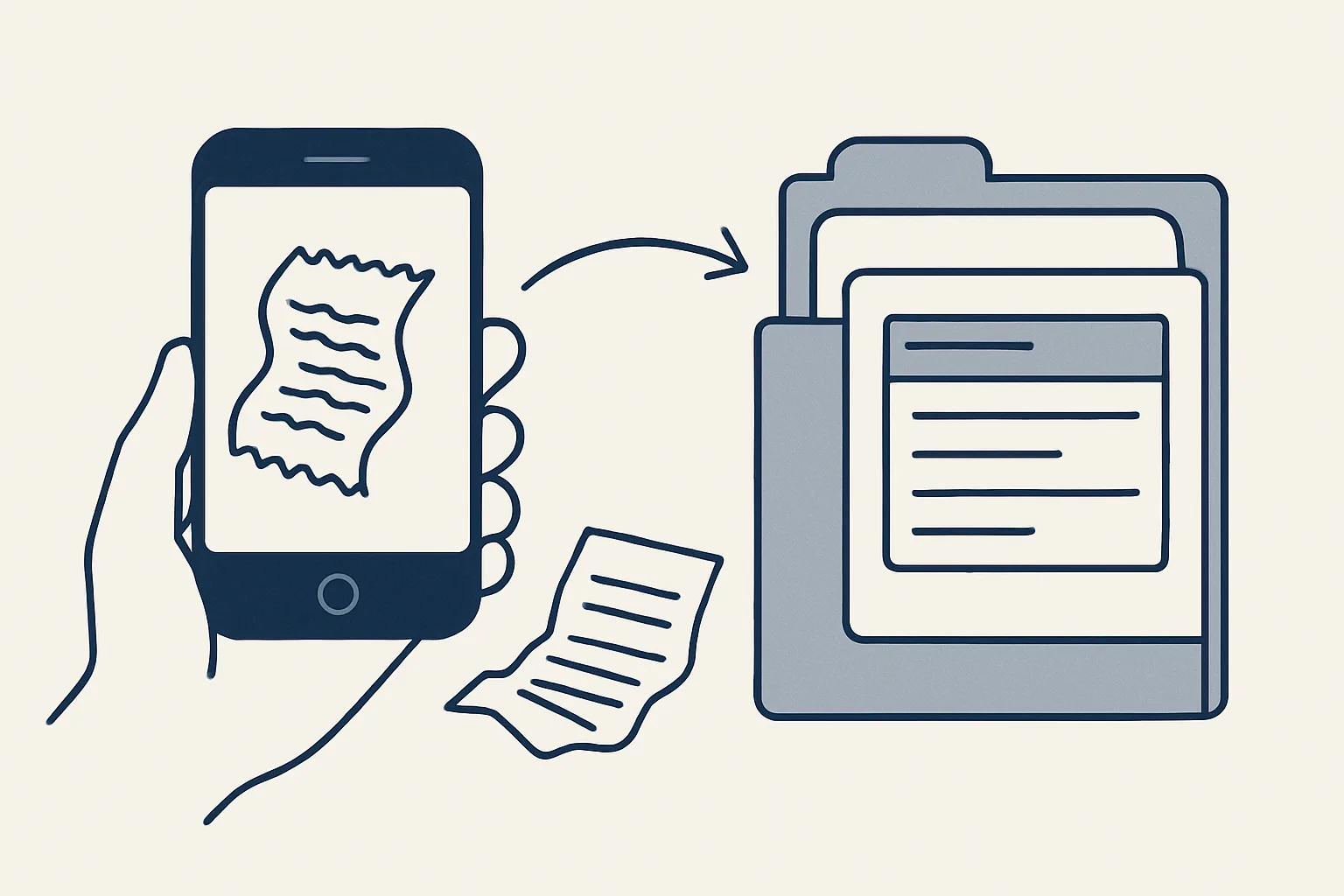
Receipt scanning reads a photo or PDF of a receipt and turns it into a draft expense entry, with the image attached, ready for a person to approve.
Without it, the routine is familiar in any trade. Someone keeps paper receipts in a wallet or a van, photographs a few, loses a few, and at the end of the month types each one into a spreadsheet or the accounting system. Someone else then chases the missing ones and matches card lines to slips of paper.
Good receipt scanning removes the typing and the matching, not the checking. It reads the details from the image, puts them in the right fields, keeps the image with the entry and sorts everything by person and month. The person who spent the money, and the person who approves it, still see every line.
It helps to be clear about what the words mean, because receipt management software, expense apps and scanning tools are often described in the same breath. The table below separates the pieces of the job.
| Part of the job | What it covers | Who does it with receipt scanning |
|---|---|---|
| Capture | Getting the receipt in, as a photo, a PDF or an email | The person who spent the money |
| Reading | Date, supplier, amount, tax, currency | The robot |
| Drafting | A draft expense entry with the image attached | The robot |
| Sorting | By person, by month, by category | The robot, by your rules |
| Approval | Accepting, correcting or rejecting each entry | A person |
| Filing | Keeping the image where it can be found later | The robot |
Taking photos that read well
A receipt reads well when the whole slip is in the photo, flat, in focus and in reasonable light.
Most reading errors start with the picture, not the software. Thermal paper fades, long receipts curl, and a photo taken at an angle in a dark parking lot hides the total. A few habits make a large difference, and they cost nothing.
If a supplier sends a PDF receipt by email, that is better still: forward it to the agreed address instead of printing and photographing it.
- Photograph the receipt on the day, before thermal paper fades.
- Lay it flat on a plain, dark surface so the edges stand out.
- Keep the whole slip in the frame, including the top with the supplier name and the bottom with the total and tax.
- Use daylight or a lit room; avoid flash glare on glossy paper.
- One receipt per photo, so the robot does not merge two slips into one entry.
- For a long receipt, take two overlapping photos rather than one tiny one.
From image to draft expense
The image is read for its key details, checked, and turned into a draft entry with the image attached; nothing is posted as final.
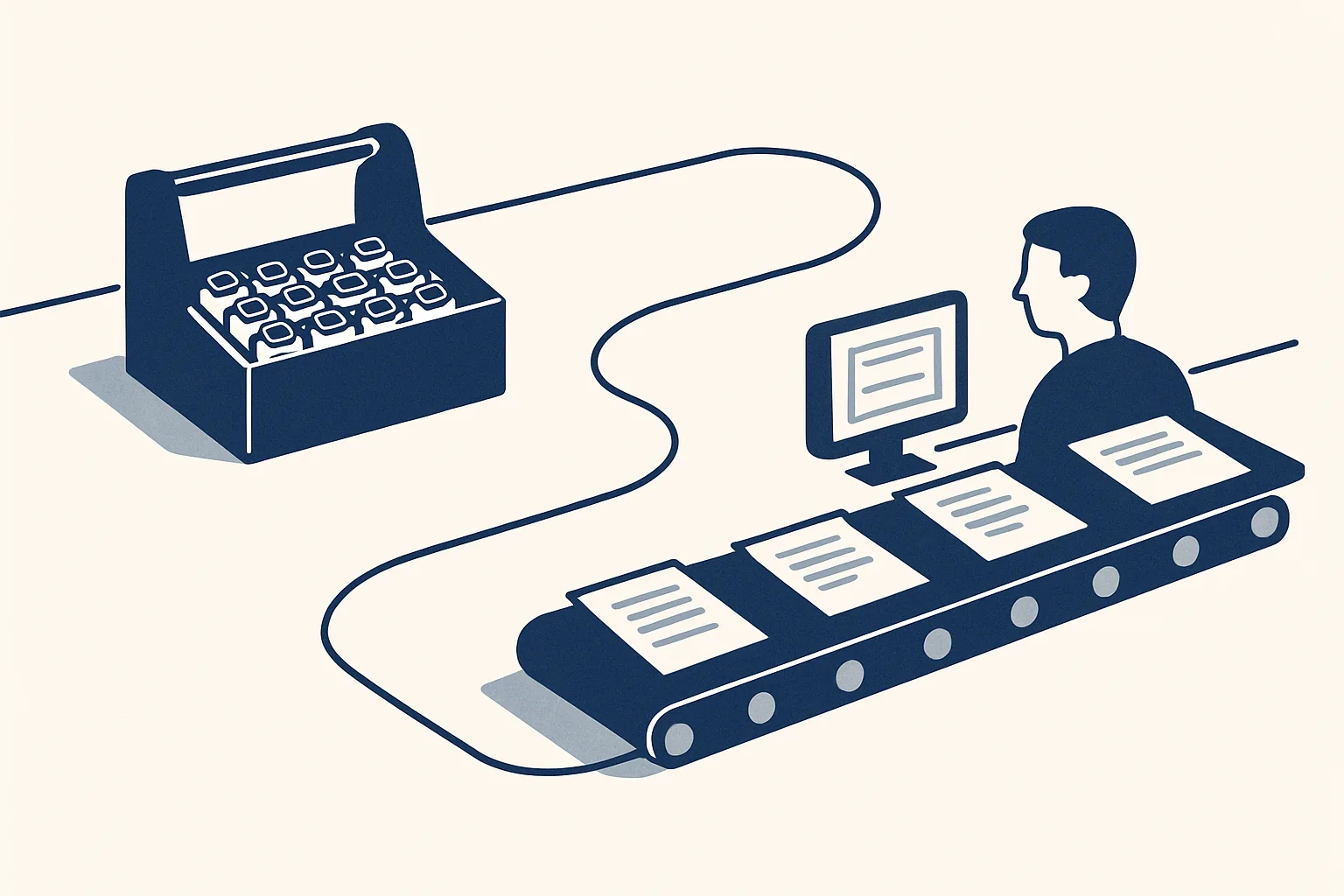
This is the same engine as our supplier bills robot, which is running today: it reads invoices and credit notes from a mailbox and a drop folder and creates draft bills with the PDF attached. Receipt scanning for expenses is offered and built to order on that engine. The route a receipt takes looks like this.
Reading works in layers. Receipts from suppliers you see every week follow the same layout, so they can be read by template. Scans and photos are read with character recognition, which turns the picture into text. Anything unusual is read with a model's help, and the result is checked against simple rules: the tax should fit the total, the date should not be in the future, the currency should match the country of the supplier.
- The receipt arrives: a photo sent to an agreed mailbox, a file dropped into a shared folder, or a PDF forwarded by email.
- The robot reads the date, the supplier, the total, the tax and the currency from the image.
- It identifies who sent it, so the entry belongs to the right person.
- It suggests a category from your own list, based on the supplier and on past entries.
- It creates a draft expense entry with the image attached, in your accounting system or in a register sheet.
- Anything it cannot read exactly, such as a faded total or a handwritten slip, goes to a person with a short note instead of being guessed.
- It writes what it did to the audit record.
Approval by person and month
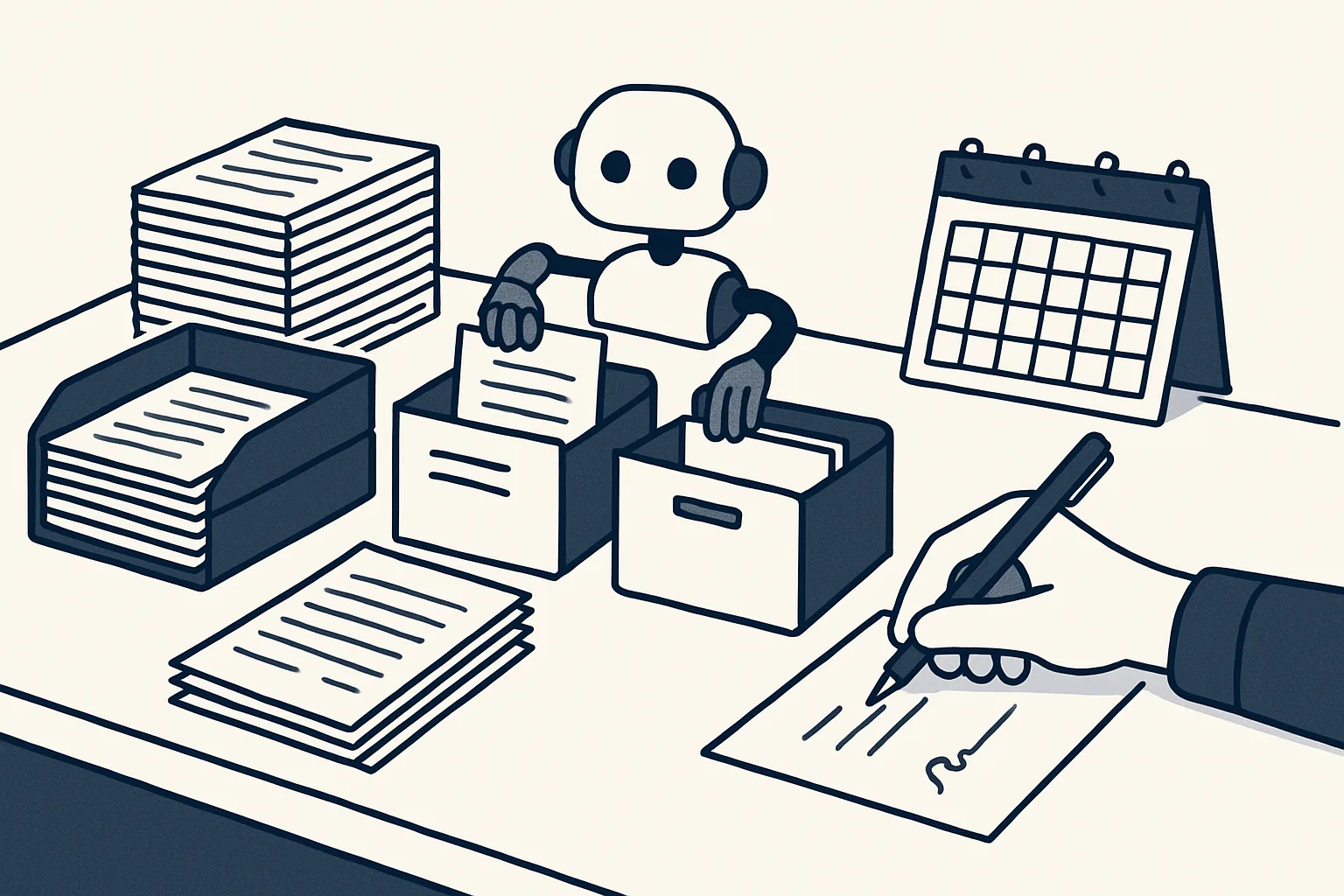
Each draft entry is sorted by the person who spent the money and by month, so approval becomes one short review instead of a pile of paper.
This is where automated expense reports earn their name. The approver sees one person's month at a time: each line with its image beside it, the category suggested and any line the robot flagged. They accept, correct or reject. Nothing reaches the books before that.
A typical month for one person might hold fuel, parking, a client lunch, a train ticket and a few small tools from a hardware store. With receipt scanning in place, each of those is already a draft line with its image when the approver opens the month, and the only work left is the review.
The rules for approval stay yours. Who approves whose expenses, which categories need a second look, and what counts as a missing receipt are written down once and then applied the same way every time.
Expense management automation of this kind does not decide what the company reimburses. It does not pay anyone back, because it never moves money, and it does not judge whether a spend was reasonable. Those decisions stay with the approver. For anything about what is tax-deductible or reclaimable, check with your adviser.
Your hours on expense receipts
Enter your own figures. The result is the time your team spends on receipts today, by your own count; it is not a promise of what automation would change.
Filing and finding receipts later
Every receipt image is filed by person and month in your own folders, linked to its entry, so it can be found in seconds when someone asks.
Expense receipt management is mostly about the day someone asks a question. An accountant wants to see the slip behind a line. A team member says they submitted something that never arrived. A year later, a supplier claims a payment was never made. In each case the answer is a search, not a hunt through envelopes.
Because the robot runs on our servers against your own accounts, the images stay in your folders and the entries stay in your own accounting system or sheet. If the rental ever stops, every receipt and every entry is already where it belongs.
What receipt scanning does not do
Receipt scanning does not approve, reimburse, or decide what is allowable; it reads, drafts and files.
It also cannot read what is not there. A receipt with no supplier name, a torn total or a handwritten note will be passed to a person rather than filled in from a guess. A receipt that was never photographed cannot be found by any software.
It does not replace a company card statement or the bank. It works alongside them: the receipt is the evidence, the card line is the payment, and matching the two is a separate step that a person confirms.
Starting with one team
Start receipt scanning with one team or one person who spends often, for one month, and widen it once the routine works.
A single team shows quickly where the rules need tightening: categories that overlap, receipts that arrive late, approvers who are away. Fixing those for a few people is easy; fixing them for everyone at once is not.
Agree three things with that team first: the single address or folder where receipts go, the list of categories, and who approves. Keep the list of categories short at the start; it is easier to split a category later than to merge two that people have used differently.
Before you start, count the current job with the calculator above. Note how many receipts arrive in a month and how long each takes today, from finding it to typing it and filing it. That figure, in hours, is the only measure we use, and it tells you whether the job is worth handing over.
Questions
Is a photo of a receipt good enough to keep?
Many businesses keep images instead of paper, but the rules on what records you must keep, and in what form, vary. Check with your adviser before you throw paper away.
Can receipt scanning read handwritten receipts?
Sometimes, but not reliably. Ours passes any receipt it cannot read exactly to a person with a note, rather than guessing the figures.
What is the difference between receipt scanning and receipt management software?
Scanning is the reading step. Management covers the whole job: capture, reading, drafting the entry, approval, filing and finding the receipt again later.
Does the robot approve or reimburse expenses?
No. It prepares draft entries sorted by person and month. A person approves them, and reimbursement is done by people, because the robot never moves money.
Do we need a new app for this?
Not with ours. Receipts can arrive by email or in a shared folder, and the drafts go into your own accounting system or sheet. It is offered and built to order around the tools you already use.
Want hours back from this work?
Write to [email protected] with how many receipts your team handles each month and how long they take, and we will tell you plainly whether scanning them is worth automating.
Talk to us Related service: Expense receipts