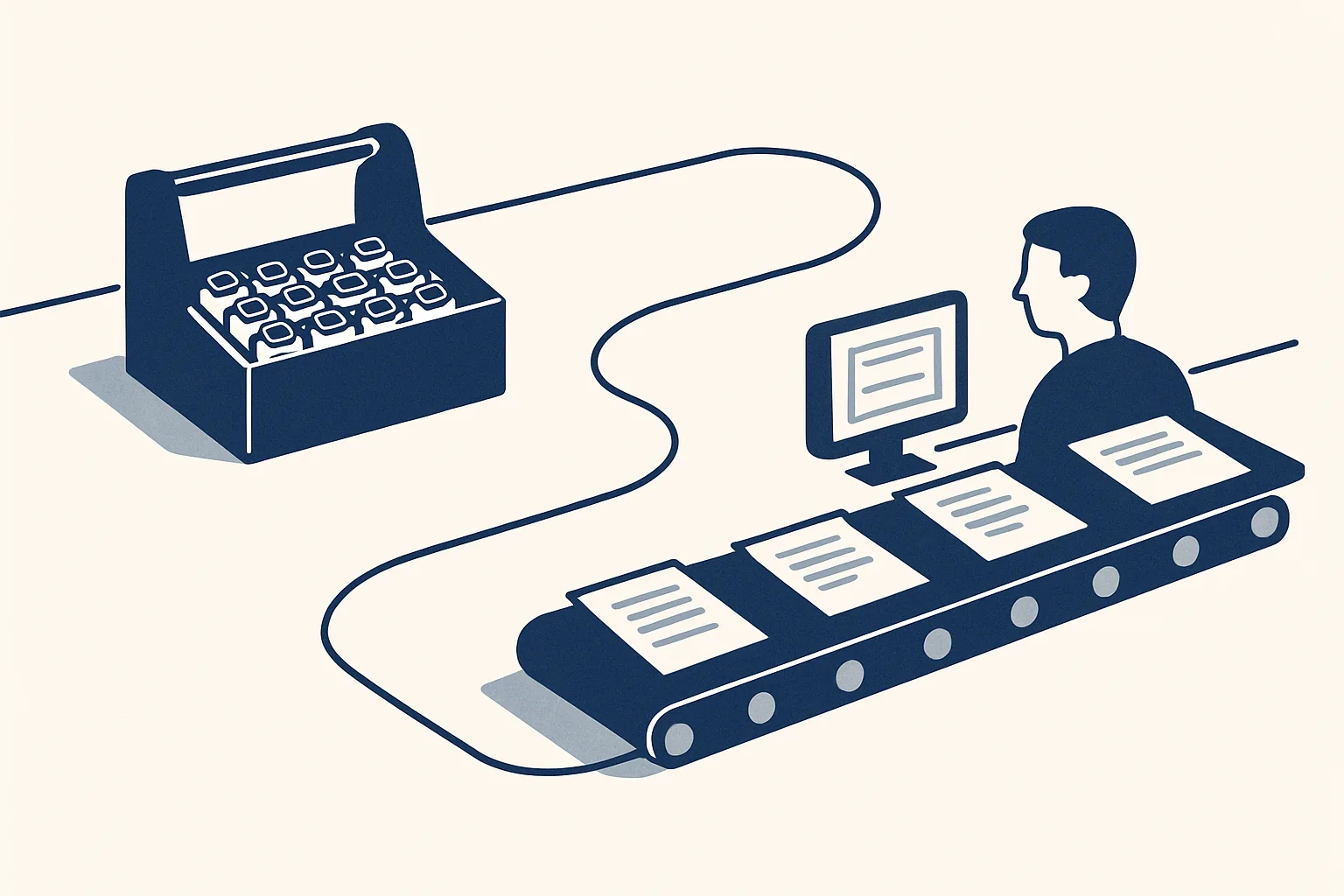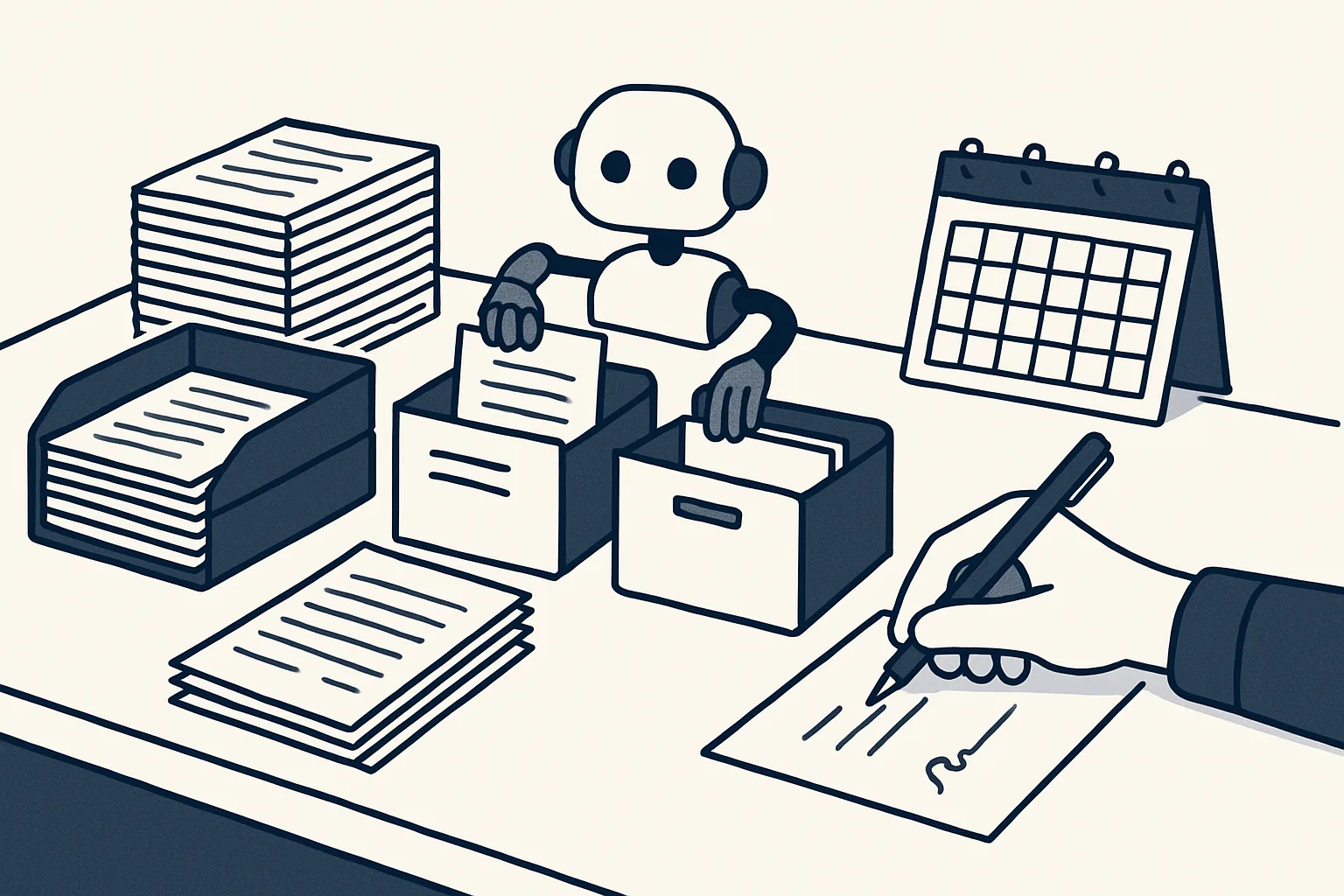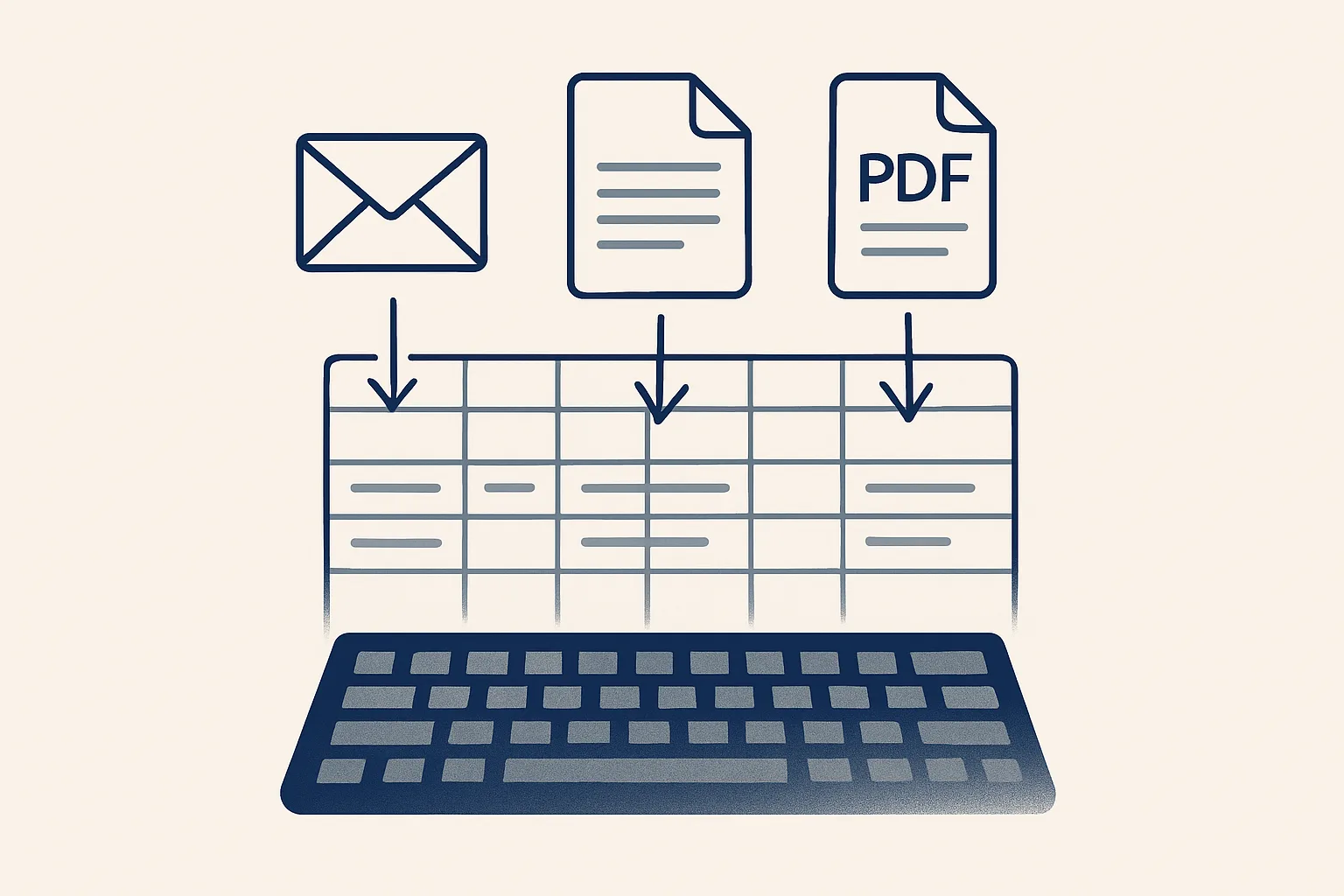
To automate data entry, find where the data arrives (emails, PDFs, scans), let a reader extract the fields, check them against what you already hold and write them to the sheet or system as drafts a person reviews. Start with the document type you retype most.
Where retyping hides
The first step to automate data entry is finding where your team retypes information that already exists in a document somewhere else.
Retyping hides in plain sight because it feels like part of the job. Someone opens a supplier invoice and types the total into the accounts. Someone copies an order from an email into a sheet. Someone reads a scanned delivery note and updates the stock list. Each case takes a few minutes, so nobody counts them, but together they can fill a large part of a working week.
A quick way to find them is to ask one question of every routine: is any of this information already written down in a document we received? If the answer is yes, the typing is a candidate for data entry automation.
Before you automate data entry, it helps to list these places for one ordinary week. Note the document, where it arrives, where the typed data ends up and roughly how long each one takes. The list is usually longer than anyone expected, and it shows at once which document type is worth tackling first.
Common places to look:
- Supplier invoices and credit notes typed into the accounting system.
- Customer orders copied from emails into a sheet or order system.
- Expense receipts typed into an expense list.
- Delivery notes and packing lists checked against orders by hand.
- Forms from customers or staff retyped into a register.
- Price lists and quotes copied into a product sheet.
Extracting fields
Extraction means reading a document and pulling out the specific fields you need, such as supplier, date, number and amounts, in a consistent structure.
When you set out to automate data entry, extraction is the step people picture, but it is only one link in the chain. The fields have to be the ones your next step needs, named the same way every time, so that a supplier date is always a date and an amount is always a number.
There are three ways to read a document, and a good setup uses all three. Documents with a known layout, such as invoices from a regular supplier, can be read by template: the robot knows where each field sits. Scans and photos are first turned into text by optical character recognition, which reads the printed characters off the image. Everything else, such as an unfamiliar layout or an order written as a sentence in an email, is read with the help of a language model.
This combination is what document processing automation means in practice. Templates are fast and exact; recognition handles paper; the model handles variety. Our supplier bills robot, which runs today, works exactly this way: known suppliers by template, scans by recognition, the rest with a model's help.
Extraction is never perfect. A crumpled receipt, a faint scan or a handwritten note can defeat any reader. That is why the next two steps matter more than the extraction itself.
Checking against known data
Every extracted field should be checked against data you already hold before it is written anywhere, so errors are caught at the door.
A reader that is mostly right is still wrong sometimes, and you do not know which times. Checking turns uncertainty into a clear signal. Is this supplier on our list? Does the invoice total equal the lines plus tax? Is the price close to the last price we paid for this product? Has this invoice number already been entered?
Each check that passes raises confidence. Each check that fails is a reason to stop. In our work the rule is firm: anything the robot cannot enter exactly goes to a person instead of being guessed. A new supplier, for example, is created only after the owner approves it.
Useful sources to check against include your supplier and customer lists, your product list, past entries and a price history. We keep a register of every product line bought and sold, with its price per unit, rebuilt from past invoices and kept up to date automatically; it runs today and doubles as a check on new prices.
| Check | What it catches | If it fails |
|---|---|---|
| Known supplier or customer | Misread names, new parties | Passed to a person; new records need approval |
| Totals add up | Misread amounts | Passed to a person |
| Not already entered | Duplicates | Skipped and noted on the record |
| Price close to last price | Misread prices, real price changes | Flagged for a person to look at |
| Dates make sense | Misread dates, wrong year | Passed to a person |
Writing to sheets and systems
Checked fields are written as drafts into the sheet or system where the team already works, with the source document attached or linked.
Where the data goes depends on the job. Supplier bills become draft bills in the accounting system with the PDF attached. Orders become rows in a sheet. Receipts become draft expense entries with the image attached, which is offered and built to order on the same engine as the bills robot.
People often ask how to automate data entry in Excel specifically. The principle is the same for any spreadsheet: the robot appends a row per document, fills the agreed columns and adds a link to the filed document. What matters is agreeing the columns in advance and never letting the robot overwrite rows a person has edited.
Writing drafts rather than final entries is deliberate. A draft can be checked and approved in seconds, but it cannot quietly flow into a report, a payment or a tax return before anyone has looked at it.
Your hours on data entry
Enter your own figures for one document type. The result is the time your team spends retyping it today, by your own count; it is not a promise of what automation would change.
Reviewing and correcting
A person reviews each draft against its source document, approves it or corrects it, and every correction becomes a lesson for the next document.
Review is quick when the draft is complete and the source is attached beside it. The reviewer is not typing; they are comparing. Most drafts are approved as they are. Those that need a correction show where the reader or the checks need adjusting, for example a supplier whose layout changed.
Review also keeps responsibility where it belongs. The robot prepares; the person who approves the entry is the one who decided it was right, exactly as if they had typed it themselves.
Every action is written to a log: what arrived, what was read, what was written and what was passed to a person. When someone asks later where a figure came from, the answer is a link, not a guess.
What automation does not do
Automation removes the retyping; it does not remove the need for someone to own the data, decide what is correct or deal with the unusual case.
It is tempting to automate data entry and then stop looking. That is when small errors build up: a supplier who changed layout, a product renamed, a currency that appears for the first time. A short, regular review of the drafts keeps the routine honest, and the log makes it easy to see what changed.
Nor does it fix messy source data. If two customers share a name or your product list has duplicates, the robot will meet the same confusion your team does. Cleaning those lists first is often the quickest win of the whole project.
Our AI employees are rented monthly, run on our servers and work inside the client's own mailbox, folders, sheets and accounting system. When you automate data entry this way, the documents and the entries stay in your own accounts; if the rental stops, the workflow stops and nothing has to be moved back.
The first document to automate
The best first document to automate is the type you retype most often, from the most predictable sources, with the clearest checks.
For many businesses that is the supplier invoice: it arrives by email, it has the same fields every time and its totals can be checked arithmetically. For others it is customer orders or expense receipts. The calculator above turns your own counts into hours, which is the only fair measure of whether it is worth it.
Here is how to automate data entry for that first document type:
- Pick the document type you retype most and count how many arrive each week.
- Time how long each one takes today, from opening it to filing it.
- Write down the fields you need and where each one goes.
- List the checks: known parties, totals, duplicates, prices, dates.
- Decide what happens when a check fails, and who receives those documents.
- Run it on real documents while a person reviews every draft closely.
- Once the drafts are reliably right, keep reviewing, but faster.
Questions
How do I automate data entry from PDFs?
Collect the PDFs in one place, have each one read by template or with a model's help, check the fields against your existing lists and totals, and write them as draft bills with the PDF attached.
Can scanned documents be read automatically?
Yes. Optical character recognition turns the image into text, and the fields are then extracted and checked. Faint or damaged scans may fail and should go to a person.
How to automate data entry in Excel?
Have each document read and checked, then append one row per document to the spreadsheet, filling agreed columns and linking the filed document. Never let the automation overwrite rows a person has edited.
Is automated data entry accurate?
Extraction alone is not always right. Accuracy comes from checking every field against data you hold and passing anything that fails to a person instead of guessing.
What is document processing automation?
It is software that receives documents, recognizes their type, extracts the fields, checks them and writes them to the right system, with a person approving the results.
Tell us your workflow. We will build it around you.
Write to [email protected] with the document your team retypes most and the hours it takes each week, and we will tell you plainly whether it can be read for you.
Talk to us Related service: Documents and filing