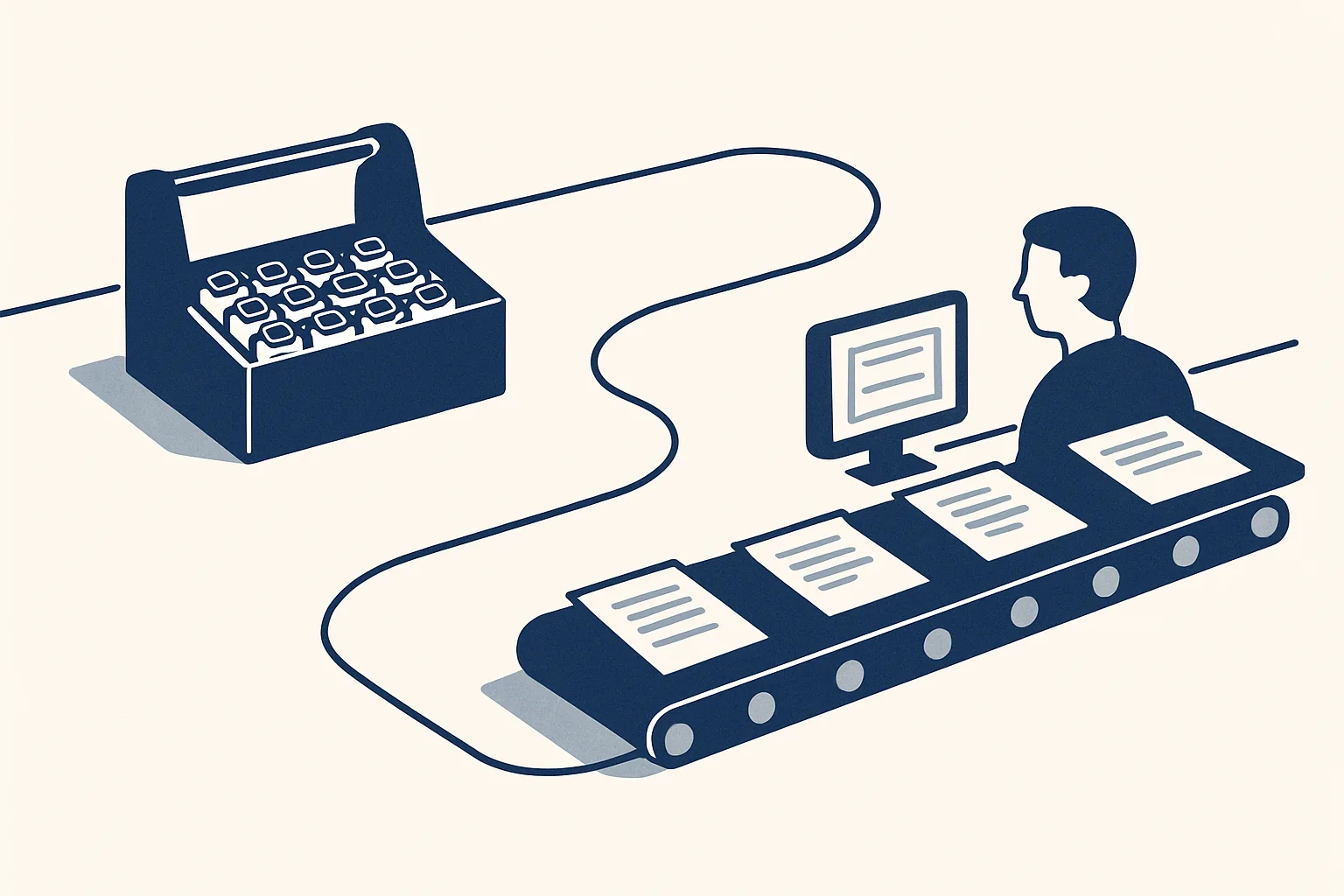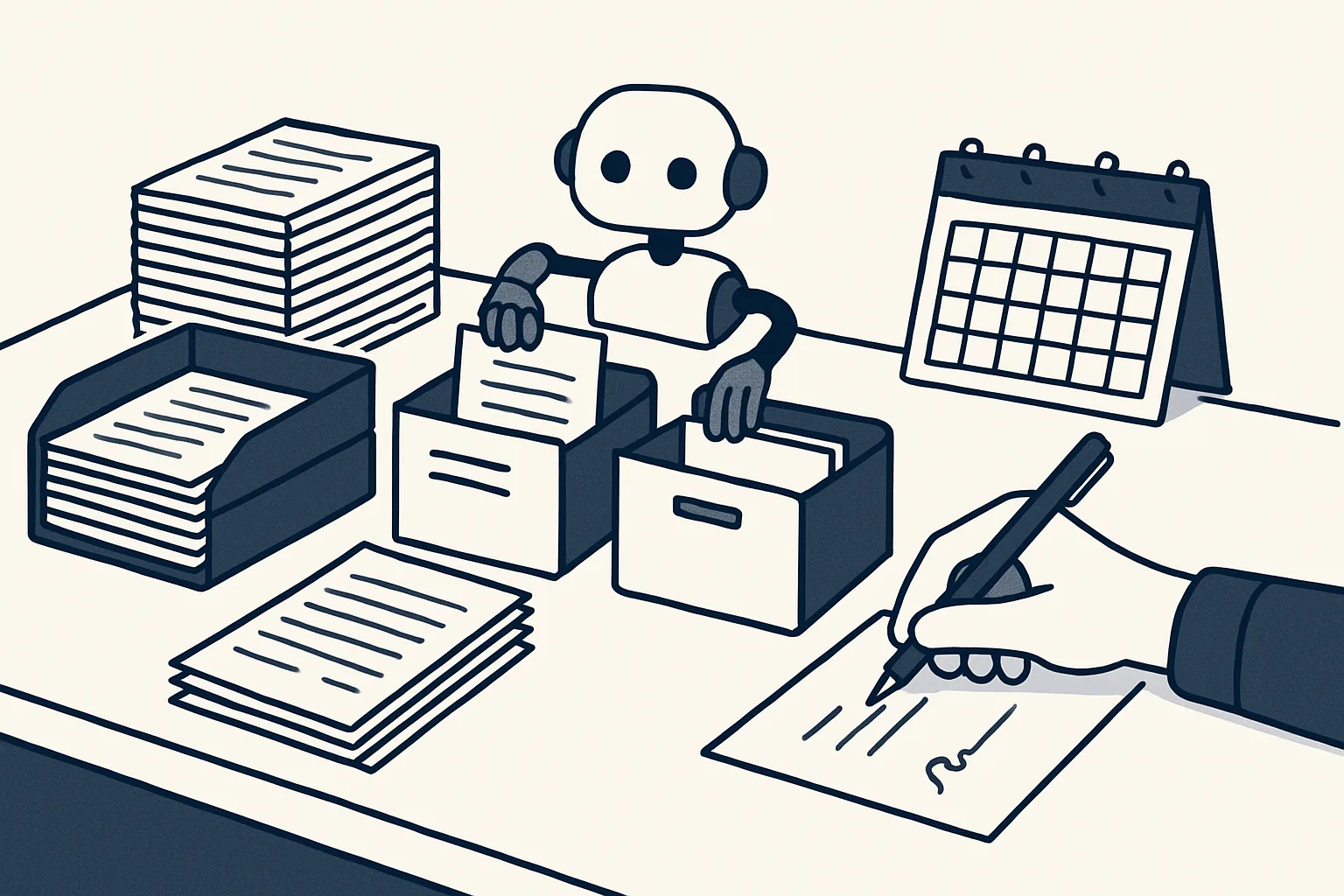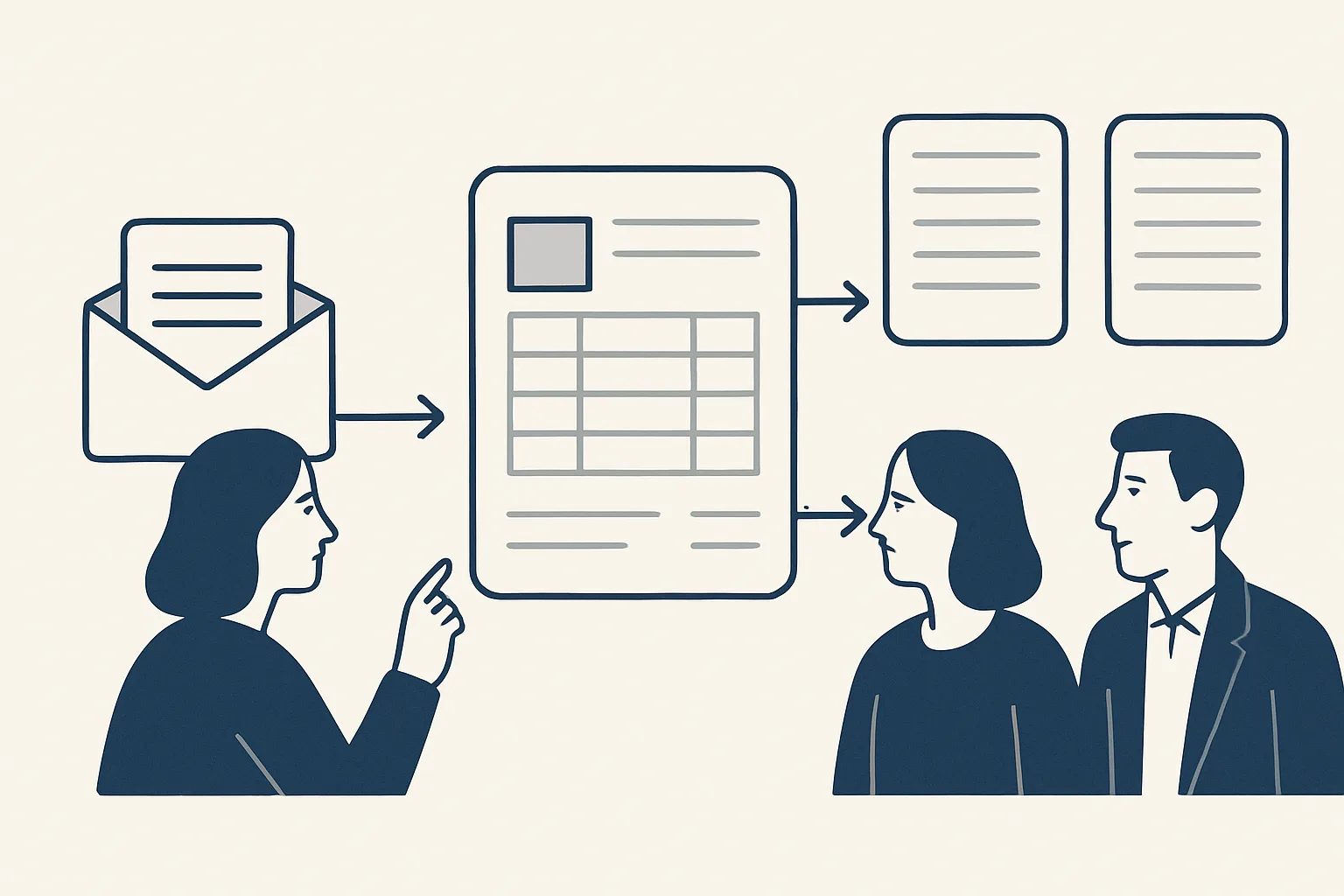
Sales order processing turns an incoming order, often an email or a PDF, into a confirmed order: customer and products matched, prices checked, stock confirmed, and a confirmation and any purchase order prepared for your approval.
The steps of sales order processing
Sales order processing is the sequence of steps between a customer placing an order and that order being confirmed, fulfilled and invoiced.
In a business that sells to other businesses, orders rarely arrive through a neat online checkout. They come as emails, as PDF purchase orders from the customer's own system, as replies to a quote, sometimes as a photo of a handwritten list. Someone has to read each one, work out exactly what is being ordered, check it against prices and stock, and send back a confirmation.
When sales order processing is done by hand, each order is typed at least twice: once into the order list and again into the invoice, and often a third time into a purchase order. Every retyping is a chance for a wrong code, a dropped line or a stale price.
The steps are the same in almost every trade, whether the goods are building materials, packaging, spare parts or office supplies. The table lists them, with what can be prepared automatically and what stays with a person.
| Step | What happens | Can be prepared automatically? |
|---|---|---|
| Receive | The order arrives by email, PDF or reply to a quote | Yes: recognized among other mail |
| Read | Customer, products, quantities, dates and references are taken from the order | Yes, with unclear lines passed to a person |
| Match | Customer and products matched to your own lists | Yes, for customers and products already known |
| Check price | Order prices compared with the agreed or last price | Yes, against your price history |
| Check stock | Availability and delivery date confirmed | Partly: depends on where stock is recorded |
| Confirm | Confirmation sent to the customer | Yes, as a draft email |
| Buy in | Purchase order raised with a supplier if needed | Yes, prepared as a draft |
| Invoice | Invoice prepared once the goods leave | Yes, as a draft invoice |
Reading orders from email and PDF
The first step is reading the order exactly as the customer sent it, whether that is a few lines of email text or a formal PDF purchase order.
In sales order processing, reading is the step that decides the quality of everything after it. A wrong quantity read here becomes a wrong confirmation, a wrong purchase order and a wrong invoice.
Regular customers tend to send orders in the same format every time, which makes them easy to read reliably. Occasional customers write freely: a product name that is almost yours, a quantity in a different unit, a delivery date written as next Thursday. Reading those needs care, and anything ambiguous should go to a person rather than being guessed.
Reading orders from the mailbox is offered and built to order on the same engine as our running work. The robot recognizes an order among the rest of the mail, reads the customer, the products, the quantities, the requested dates and the customer's own reference, and writes one clean order record. Lines it cannot read exactly are flagged, with the original email attached.
Matching customer, product and price
Matching means linking the order to a known customer and known products, then checking every price against what was agreed or last charged.
This is the step where most order errors start. A customer orders a product by an old name. Two customers have similar names. A price on the customer's PDF is the one from last year's quote. Each of these is easy to miss when orders are keyed by hand at speed.
Two pieces of our work that are running today help here. The sales invoicing system keeps a sheet that remembers clients and products, so the order can be matched to the same records the invoice will use. And a price history, a register of every product line ever bought and sold with its price per unit, rebuilt from past invoices and kept up to date, shows the last price charged to this customer for this product. When the order price differs from the last price, the difference is flagged for a person to decide.
- The customer on the order matches exactly one customer in your list.
- Every product line matches one product, with the unit of measure understood.
- Each price matches the agreed price, the quote it refers to or the last price charged.
- Quantities and units make sense together.
- The customer's own order reference is captured for the confirmation and the invoice.
Which steps of your orders could be prepared?
Walk through one recent order. Tick each statement that is true of how orders work in your business today; each tick is a step that can be prepared automatically, starting with your approval.
Confirmations as drafts
The order confirmation should be checked by you before it goes, at least at first, because it is a promise to the customer about price, quantity and date.
A confirmation repeats the order back in your own terms: what you will supply, at what price, by when. If anything differs from what the customer asked for, such as a partial delivery or a changed date, the confirmation is where it is said. That makes it a document worth a glance before it goes, at least at first.
Drafted confirmations are built to order: the confirmation is prepared from the matched order record, as a PDF and a draft email in your mailbox, with any flagged difference highlighted. At the start you check and send it, with the differences already marked. The route of one order looks like this.
Checking a draft takes a moment when the order was matched cleanly. The person's attention goes where it is needed: the flagged lines, the changed date, the price that moved.
- An order arrives by email with a PDF attached.
- It is read into one order record, with the customer's reference.
- Customer and products are matched to your lists; any unknown customer or product goes to a person.
- Prices are checked against the agreed or last price, and differences are flagged.
- A draft confirmation and a draft email are prepared for a person.
- If goods must be bought in, a purchase order row is prepared for approval.
- A person checks the confirmation and sends it; the order is then ready for fulfillment and invoicing.
Linking to purchase orders
When a sales order needs goods you do not hold, it should lead straight to a purchase order with the supplier, prepared from the same record.
This is where purchase order automation joins the sales side. Our purchase order robot is running today for a client: one row in a sheet, two confirmations from a person, and the robot renders the purchase order PDF, files it, and prepares a draft email to the supplier and a message in the client app. The supplier's copy is numbered, filed and in the same format every time.
Linking the two keeps the references straight. The purchase order can carry the sales order reference, so when the supplier's goods arrive, they are matched to the customer waiting for them, and the eventual sales invoice can be prepared from the same record. That is the practical meaning of order management automation for most businesses: one record that travels from order to purchase to invoice, with a person approving each document that leaves.
Quote automation sits just before all of this. Where an order follows a quote, matching it to that quote makes the price check simple; drafting quotes from past prices is also built to order on the same engine.
Common errors to catch in sales order processing
The errors worth designing against are the ordinary ones: wrong product, wrong price, wrong quantity, a duplicate order and a missed delivery date.
Each has a simple check. A product that matches nothing in your list is stopped. A price that differs from the last price is flagged. An order that repeats an earlier one from the same customer with the same reference is flagged as a possible duplicate. A requested date earlier than your usual lead time is highlighted on the confirmation draft. None of these checks decides anything; each puts the question in front of a person at the right moment.
It helps to keep a short log of the errors that do get through. After a few months, the log shows which checks are worth adding to your sales order processing and which errors come from somewhere else entirely, such as an out-of-date product list.
What automation does not do is just as important. It does not accept an order on your behalf, change a price, promise stock you do not have or send anything to a customer or supplier. Everything runs on our servers against your own mailbox, folders, sheets and accounting system, rented monthly at one figure per workflow stated in the quote. Nothing is switched on without your yes, every action is written to a log and one command stops any robot.
Questions
What is sales order processing?
It is the sequence of steps from receiving a customer's order to confirming, fulfilling and invoicing it: reading the order, matching customer and products, checking price and stock, and sending a confirmation.
Can orders be read automatically from email?
Yes, for orders in a recognizable form. Reading orders from the mailbox is built to order with us; anything ambiguous is passed to a person instead of being guessed.
Will the system send order confirmations by itself?
No. Confirmations are prepared with a PDF, and at the start you check and send each one.
How does sales order processing connect to purchase orders?
When an order needs goods you do not hold, a purchase order is prepared from the same record for your approval. Our purchase order robot is running today.
What errors does automation catch in order processing?
Unknown products or customers, prices that differ from the agreed or last price, possible duplicate orders and delivery dates shorter than usual. Each is flagged for a person to decide.
Tell us your workflow. We will build it around you.
Write to [email protected] with how many orders you process a week and the hours they take, and we will tell you plainly which steps can be prepared for you.
Talk to us Related service: Sales desk and orders